Partner Guide — Geotab Integrated Solution for International Trucks
Support Document
0 mins to read
This document answers common questions regarding the Geotab Integrated Solution for International Trucks on Navistar Premium available in MyGeotab. Our intent is to support you, the Geotab Partner, by providing all essential information related to this solution.
Geotab Integrated Solution for International Trucks
For the most up-to-date version of this document, refer to: https://gtb.link/myYH
Introduction
This document answers common questions regarding the Geotab Integrated Solution for International Trucks available in MyGeotab. Our intent is to support you, the Geotab Partner, by providing all essential information related to this solution.
Which vehicles are eligible for this solution?
- Only US, Canada, and Mexico International Trucks brand vehicles are eligible for this solution.
- LT, RH, LoneStar: Most 2019 or newer vehicles are eligible once validated.
- HV, HX Heavy with A26: Most 2021 or newer vehicles are eligible once validated.
- HV, HX, and MV with Cummins: Some vehicles may be supported, submit a validation request.
- IC Bus built after January 2023 should all be eligible once validated.
- All the Electric Vehicles (EV) built after January 2023 should be eligible once validated.
How do I order this solution?

Step 1 — Check vehicle eligibility
Validate vehicles on the Vehicle Eligibility page:
1 | From the MyAdmin main menu, navigate to Vehicle Eligibility. |
2 | Enter one or more VINs or specify a make/model/year. Select the operating region in the Region dropdown. |
3 | Click Search. |

If the OEM is providing an API to check the eligibility of their vehicles, the result will appear immediately.
If one or more VINs require a manual check, a pop-up will prompt you to begin the process by clicking Request OEM eligibility check. You will automatically receive a confirmation email, and once we have the results from the OEM, you will receive them per email. For ease of reference, the VIN eligibility results can be downloaded in a file.
After confirming which vehicles are supported, you can proceed to Step 2 to order the solution from your MyAdmin account.
Step 2 — Register third-party devices in MyAdmin
You will need Geotab third-party serial numbers to use this solution with MyGeotab. You can order third-party serial numbers from your MyAdmin account using the following steps:
1 | From the MyAdmin main menu, navigate to the Device Management page and then select Register third-party device:
|
2 | The Register Third-Party Device dialog appears:
In this dialog, enter the Account and Number of devices. In the Product Code field, enter:
In the Subscription Plan dropdown menu, select Navistar Premium. For more information on subscription plans, refer to the Rate Plan Features and Data Set documents. |
3 | Click Register. The MyAdmin order process is complete. |


Serial numbers can be downloaded from the Downloads section in MyAdmin. If you have email notifications enabled in your preferences, you will also receive an email with a link to a CSV file containing the serial numbers. Once you have your allocated serial numbers, proceed to the next step to add the devices in MyGeotab.
Step 3 — Add devices in MyGeotab (SN & VIN)
You must provide the VIN and device serial number when adding devices to MyGeotab. To learn how to add your assets to MyGeotab, see Adding assets in the Product Guide.
! IMPORTANT: Be sure that you add the device to one database only, and that you only provide VINs for vehicles that you have clearance to view.
✱ NOTE: It may take up to 24 hours for the vehicle data to become available on MyGeotab after the devices are added to the database.
Using the solution
1 | After you have added the device in MyGeotab, navigate to Map and click the Trips history button. |
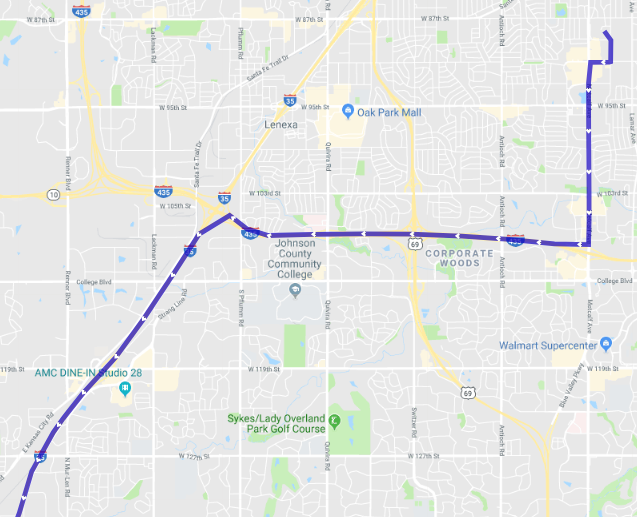
2 | Under Trips History, click a trip to view it on the Map. The image below shows an example of a Trip History in MyGeotab. The same User Interface (UI) is used with this solution:
|
3 | To view telematics data and events, you can view built-in reports, rules and events from MyGeotab. For more details refer to the Product guide. |
4 | For more information on subscription plans, refer to the Rate Plan Features and Data Set documents. |
Billing
Will I be billed by Geotab or International Trucks?
While the solution uses the OEM embedded telematics device, all billing will be done by Geotab.
How do I choose a rate plan for the device?
MyAdmin provides subscription plan options in a dropdown menu during the order process. For more information on subscription plans, refer to the Rate Plan Features and Data Set documents. Pricing is available in MyAdmin under Billing > Rate Plans. Check the Navistar Pro OEM plan.
When does billing begin?
Billing begins the moment the device is added to MyGeotab and starts receiving data from the OEM. The solution will be billed at the end of every month (prorated).
Managing International Trucks devices
How do I identify International Trucks devices in MyAdmin?
You can see your International Trucks devices in MyAdmin under Devices > Device Management. All device serial numbers start with “E1”.
Can I use the ‘Swap device’ function in MyGeotab?
GO devices can be replaced by OEM devices by using the Swap device option in MyGeotab. The Swap device option can only be used when moving from a GO device to an OEM device, it cannot be used to replace an OEM or third party device with a new OEM device.
! IMPORTANT: To update an OEM or third party serial number, the older OEM device must be terminated in MyAdmin, and unplugged in MyGeotab using the Remove device > Keep Active option. Once unplugged, the new OEM serial number can be added on the asset page using Add device > Save new asset option.
Below are the detailed steps:
- Terminate the old Serial Number on MyAdmin
- Provision a new Serial Number on MyAdmin
- Between steps 1 and 4, you should wait at least 15 minutes
- On MyGeotab, go to the Asset Edit page for the asset to be replaced. Unplug device and select the Keep Active option
- Select the same asset again to reach the Asset Edit page
- Click Add device
- Enter the newly-provisioned SN
- Click Save new asset
How do I terminate International Trucks devices?
International Trucks devices can be terminated from MyAdmin by following the standard device termination process. Identify your devices under Devices > Device Management. Select the devices you wish to terminate and click the Change Plan button to select Terminate Mode. The devices will be terminated on MyAdmin. After this step is complete, we recommend that the devices be removed or archived from MyGeotab database as well.
What happens if I terminate an International Trucks device in MyAdmin?
Billing stops as soon as a device is terminated. To ensure complete termination, remove the device from the MyGeotab database or make it historic.
Can I reactivate terminated devices?
Terminated OEM serial numbers can not be used again. If you wish to reactivate a vehicle, repeat the procedure in Step 2 and Step 3 to register and add a new device..
Can I change the VIN after it has been provided in step #3?
No, the VIN associated with an OEM serial number cannot be changed. If you want to make such changes, terminate the old device and repeat the procedure in Step 2 and Step 3 to register and add a new device.
Does standard Geotab Warranty or RMA Policy apply to International Trucks devices?
Geotab Warranty and RMA Policy do not apply to International Trucks devices. As the hardware belongs to International Trucks, their policy for hardware warranty and repairs will be applicable.
Network coverage
Which cellular networks are available for this solution in North America?
The solution is available on AT&T in the US and the best available partner network in Canada or Mexico.
Will the solution work while roaming in North America outside the base region and are there any restrictions?
Yes the solution will work for vehicles roaming outside the base region.
Getting help
How do I interpret various OEM activation statuses, and identify next steps for resolution?
The Device Status Guide provides an overview of activation statuses and their general interpretations. Statuses for International Trucks devices are detailed in the table below:
OEM Status | Description | Next Steps |
Asset not in use | Typically a temporary state - the vehicle may not have been driven yet. | Ensure the vehicle is powered on and driven. Allow up to 24 hours for pending states to resolve. If the issue persists, contact Support. |
VIN required | The device serial number has been provisioned but no Vehicle Identification Number (VIN) has been associated with it. | Ensure the vehicle's VIN has been entered and associated with the device in Fleet Management Application. Contact your fleet administrator if the VIN is missing. |
Eligibility check required | The vehicle failed an eligibility or VIN validation check. | Verify the VIN is correct and eligible. |
I cannot see device data on MyGeotab, what are some initial troubleshooting steps I can perform?
Here are some preliminary troubleshooting steps you can perform as a Geotab Partner:
- Look at the Serial number prefix - is it what was intended (E1)
- Check MyGeotab - does VIN exist on the device page? If not, add it
- Confirm with the customer that vehicle has been moving
Who do I contact for support?
As a Geotab Partner, if you have used all applicable troubleshooting resources, contact Geotab for support. Note that Geotab is unable to support Accident Reconstruction requests for OEM devices.
How do I contact support?
If you have an issue that requires technical support, contact Geotab Support. Make sure to specify the category as “Third Party Hardware” and provide both serial number and VIN as part of the issue description. You must also make a copy of the Troubleshooting Information Template, fill it in, and include it when contacting Geotab Support.
If Geotab Support determines that the issue is not related to a Geotab service, we will refer to support material provided by the hardware partner. If required, we will escalate the issue and work with you on a resolution.
It has been determined that my device does not work. What should I do?
The International Trucks factory embedded modem is covered under International Truck's vehicle warranty. If your device does not work, go to an authorized International Trucks repair center for evaluation.
Resources and contact information
For more information, refer to the Geotab-International Trucks brochure, and the MyAdmin User Guide. For questions, contact your Partner Account Manager (PAM).