User Guide
0 mins to read
April 2026
Overview
All telematics devices in the Fleet Management Application have an associated Device Status. The purpose of the Device Status is to provide information about device health and help you troubleshoot any connectivity issues.
Device statuses can be viewed on the Assets page, where a tile is displayed for each different status, along with the number of devices with that status. You can click on any tile to filter your list of assets by that device status. For instance, clicking the Low Asset Battery tile will display all devices with a low battery.

Device status definitions
This section lists all device statuses and their definitions:
- Terminated
- Suspended
- Low asset battery
- Loose installation
- Liquid Intrusion
- OEM-related device status
- Replace device
- Offline
Terminated
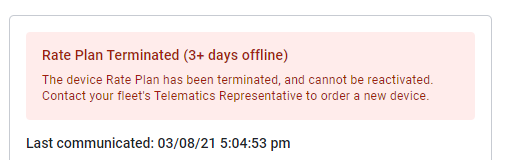
A Terminated device has had its device plan terminated, meaning its SIM card has been terminated with the cellular carrier and can no longer be used.
If you think the device should not be terminated, contact your Telematics Representative.
We recommend that you Archive the device if it is terminated. Replace the device in the asset if you need to continue gathering data for the existing device record.
For more information, refer to the Archive and Removing assets section of the Product Guide.

Suspended
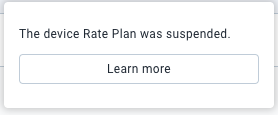
A Suspended device is in a mode where it cannot report data until suspend mode is disabled.
Suspend mode is typically applied to seasonal vehicles, such as suspending snow plows during summer, or landscaping vehicles during winter. It can also be applied to vehicles expected to be out of use for an extended period of time, such as undergoing maintenance or repairs.
If you think the device should not be suspended, contact your Telematics Representative.

Low asset battery
The Low asset battery status is triggered when the battery of the asset connected to the device has dropped below 11.57 volts for approximately 5 minutes, which indicates a high likelihood that the asset battery is failing, requires replacement, or is otherwise low.
If the icon is red, then the device likely is offline due to low battery voltage, though it could still be receiving power sporadically.
If the icon is yellow, then the device is online but the asset’s battery should be investigated, either for low voltage or to ensure it is providing enough power to the device.


Loose installation
The Loose installation status indicates that the telematics device might not be securely attached to the diagnostic port. It’s triggered when the device detects multiple acceleration events before going offline, or if the device has received multiple indications of a loose installation while it’s still online.
We recommend inspecting the device’s installation to ensure it is snugly and securely connected to the asset. You can add more zip ties to secure the device, or reposition the device to another area of the asset that experiences less movement during operation.


If the device was previously loose, but has not detected a loose status in 72 hours, the following message appears: “Possible loose device installation resolved”.
Click Is this accurate? to provide us with feedback that can help improve the algorithm that detects loose installations.
Click Dismiss to remove the device status from the asset.

Liquid Intrusion
The device has detected that there may be liquid inside its casing, which could be causing electrical interference or capacitor overloads. It is recommended that you inspect the device for any damage and potentially replace it to avoid any data loss.
OEM-related device status
Some OEM-related errors can occur for third-party devices reporting to the Fleet Management Application. They can range from activation errors to connectivity issues, and we recommend that you investigate devices with this status to ensure that the OEM telematics device is online and correctly reporting data to your database.
In the example below, the device has not been fully activated and requires additional information before it can report data:
For more information on OEM-related device statuses, please refer to the Frequently asked questions (FAQs) section.
Replace device
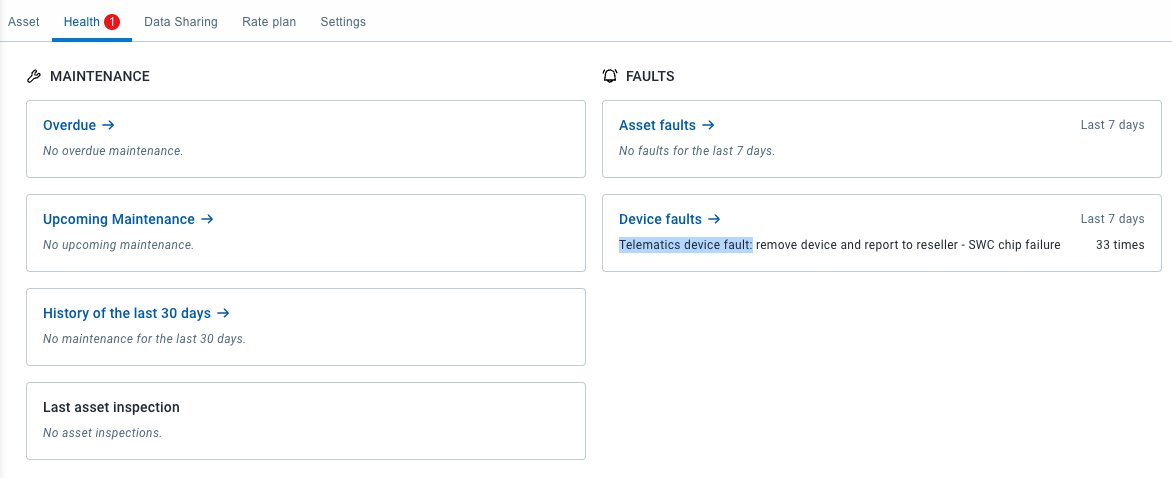
The Replace device status indicates that a telematics fault has been triggered that is serious enough to warrant replacing the device entirely. In such cases, check the device for any additional damage and contact your Telematics Partner to begin the replacement process.


Offline
The Offline status is a general status indicating that the device is not currently reporting to the Fleet Management Application. The Fleet Management Application now uses predetermined time periods to notify you when a device goes offline, with timings dependent on the specific device type being monitored (GO Device, GO Anywhere Device, or Third-Party/OEM device).
If you can determine why the device went offline, you can provide feedback to improve the Device Status feature.
To provide feedback, click Learn more for the impacted asset. On that individual asset’s Edit Asset page, click Verify reason. Your feedback provides data that helps improve the feature’s detection algorithms.


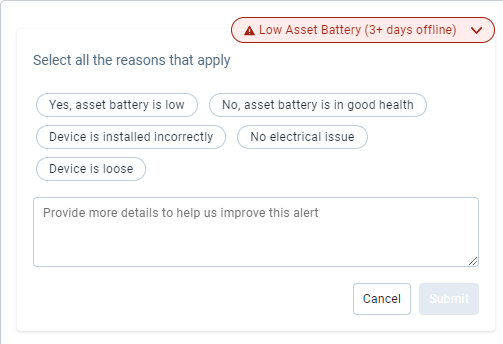
Select all reasons that apply and/or provide more details to help us improve the alert in the comment field and then click Submit.

Manual Dismiss
Dismissing a device status
Dismissing a device status removes it from your asset. To do this, click the red cloud icon next to the asset name to open a dropdown providing details about the device status and offering options to either Learn more or Dismiss. Click Dismiss to remove the device status.

Dismissing a resolved device status
If the device issue may be resolved, you can dismiss its device status to remove it from your asset. To do this, select the asset name from the list. In the Location section, you will see a message in a green box that says “Possible [device status] resolved”. Click Dismiss to remove the device status.

Help us improve the feature!
Every device status has a Verify reason or Is this accurate? button located in the notification box of each vehicle's Individual Edit Asset page. When you provide us feedback as to the accuracy of the provided status, you help us develop new device statuses, and validate the detection triggers and labeling of existing statuses. This only takes a few moments and can drive the future of the feature, so your feedback is greatly appreciated.
Some examples are shown below:



Frequently asked questions (FAQs)
Can I filter by device status to download a device report?
Yes. After clicking on any of the summary tiles at the top of the Assets page, you can then click Download to download any available device report with only the filtered devices included in the report.
Which reports include device status?
The Standard, Advanced, Device Online and Offline, and Watchdog reports found on the Assets page all include device status. The Device Online and Offline, and Watchdog reports show device status on the Report Sheet of the report, while the Standard and Advanced reports show device status on the Data Sheet of the reports. 
Why can I not dismiss device statuses?
While some statuses like Terminated and Suspended are based on looking up device plans, others are based on models that evaluate the most likely reason why a device went offline. We are working on a quick way to dismiss the statuses when these models prove to be accurate, but they are clear to remove from the asset. For now, the best strategy is to provide feedback using the Is this accurate? button on the device’s Edit Asset page.
How long does it take for an insight to appear?
An insight appears and is updated every hour. For more frequent insights, you can utilize the Watchdog report to control the frequency of insights.
The Loose Install insight appears and is updated every 24 hours due to the inherent delay of the data it depends on.
How long does it take for an insight to disappear?
Most insights will disappear 10 days after the condition that triggered them is no longer active. The hourly health service deactivates the status after this period.
The following are special scenarios where an insight’s lifespan may differ:
- Loose Install Status
- Appearance: A "Loose Install" insight appears during the next hourly check after a device reports a “PotentialBadInstall” diagnostic. This indicates the device may be unplugged or loosely connected.
- Disappearance: The "Loose Install" insight disappears 10 days after the issue has been resolved. When a diagnostic value of 0 is received, signaling the device believes the problem is resolved, a 10-day timer begins for the removal of the "Loose Install" insight.
- OEM-Specific Statuses
- Appearance: Insights specific to Original Equipment Manufacturer (OEM) devices are created during the next hourly check after an event is reported by the OEM. Examples include “OEM_VINRequired” or “OEM_AuthorizationRequired”.
- Disappearance: Unlike other statuses, OEM-specific insights disappear much faster. They are automatically removed after 1 day if the condition is no longer being reported by the device.
What are the fault codes causing the summary tiles to appear?
The following codes can be used to create rules and notifications for these insights. The faults that are triggering those summary tiles are:
- FAULT_LOW_VOLTAGE_WARNING 135
- FAULT_SWC_TRANSCEIVER_FAILED 488
- FAULT_GROUND_WATER_INTRUSION_DETECTED 467
- FAULT_FLASH_FAIL 128
- FAULT_POWER_WATER_INTRUSION_DETECTED 468
- FAULT_SWC_FUSE_BLOWN 491
- FAULT_RAM_ERRORS 297
- FAULT_DISABLED_NEEDS_RMA 450
Summary Tiles | Fault Codes | Summary Description |
Device terminated | N/A | The Device has been terminated. |
Loose installation | AI Model Code: 3 | This is a data model that evaluates acceleration events prior to the Device being offline that likely explains the device has become so loose it went offline. |
Device offline Needs replacement (RMA) | FAULT_SWC_TRANSCEIVER_FAILED 488 FAULT_FLASH_FAIL 128 FAULT_SWC_FUSE_BLOWN 491 FAULT_RAM_ERRORS 297 FAULT_DISABLED_NEEDS_RMA 450 | Two faults generated by the Device will immediately indicate a device is no longer usable and needs to be replaced. |
Low asset battery | FAULT_LOW_VOLTAGE_WARNING 135 | This status is shown when a device has the low power voltage fault prior to the device going offline. |
Liquid Intrusion | FAULT_GROUND_WATER_INTRUSION_DETECTED 467 FAULT_POWER_WATER_INTRUSION_DETECTED 468 | The Device is detecting that the GO Device has had a short circuit caused by liquid. |
Device disable | FAULT_DEVICE_DISABLED 197 | The Device is disabled. |
Unknown reason | N/A | The Device has been offline for 3+ days and the reason is unknown. |
How to interpret various OEM statuses, and identify next steps for resolution?
OEM Status | Fault Code | Description | Next Steps for the user |
Asset not in use | 617 | Typically a temporary state - the vehicle may not have been driven yet. | Ensure the vehicle is powered on and driven. Allow up to 24 hours for pending states to resolve. If the issue persists, contact Support. |
VIN required | 618 | The device serial number has been provisioned but no Vehicle Identification Number (VIN) has been associated with it. | Ensure the vehicle's VIN has been entered and associated with the device in Fleet Management Application. Contact your fleet administrator if the VIN is missing. |
Eligibility check required | 623 | The vehicle failed an eligibility or VIN validation check. | Verify the VIN is correct and eligible. |
Blue Button Key Press required | 619 | GM: The GM OnStar system requires a Blue Button Key Press (BBKP) to authorize telematics data sharing. | GM: The driver must press and hold the blue OnStar button in the vehicle and follow the OnStar enrollment prompts. |
Fleet Account Number required | 620 | GM: The Fleet Account Number (FAN) is missing or incorrect. | GM: Provide the FAN in the 'OEM configuration' add-in. Contact support if the FAN was provided correctly but the error persists. |
Customer Connectivity Settings required | 621 | Ford: Ford's Connected Car Services (CCS) are disabled or unavailable | Ford: Enable Ford Connected Car Services via FordPass instructions. |
Kia: User has not yet completed activation in Kia's system | Kia: The user must activate Kia connect service on the vehicle. | ||
OEM authorization required | 622 | Ford: Vehicle owner has not provided data sharing consent to Ford. | Ford: Update fleet account portal. |
Tesla: Vehicle owner has not provided data sharing consent to Tesla. | Tesla: Vehicle owners must grant data sharing consent through the Tesla app. | ||
Kia: The vehicle's VIN has been blacklisted in Kia's eligibility system. | Kia: Contact support. | ||
BMW: BMW's vehicle ownership verification failed. | BMW: Ensure vehicle is correctly registered under the fleet account. Contact support if issue persists. | ||
VW Group: VIN is already subscribed to another fleet account. | VW Group: Verify if the vehicle is enrolled under a different account. Contact support to transfer or clear the enrollment. | ||
Rivian: VIN is not on Rivian's approved fleet whitelist. | Rivian: Contact support to add the VIN to the approved fleet whitelist. | ||
Stellantis: An active contract already exists for this vehicle in Stellantis's system. | Stellantis: Contact support to investigate the existing contract conflict. | ||
Asset in Transit or Factory Mode | 625 | Ford: The vehicle is in Transport or Factory Mode, which disables telematics enrollment. Typically applies to new vehicles being delivered. | Ford: The vehicle must be taken out of Transport/Factory Mode. Instructions. |
OEM Terms and Conditions required | 626 | GM: GM OnStar Terms and Conditions / Privacy Statement not accepted. | GM: Fleet customers must accept T&Cs. |
Tesla: Tesla End User License Agreement (EULA) for fleet has not been accepted. | Tesla: Accept Tesla terms via OEM Configuration add-in. | ||
Kia: Kia fleet telematics EULA not accepted. | Kia: Accept terms via OEM Configuration add-in. | ||
Location services required | 627 | Location sharing has been disabled on vehicle infotainment systems. Only available for GM, Rivian | Only available for GM, Rivian |
Data services required | 629 | Tesla: Vehicle firmware version is not supported by the telematics integration. | Tesla: Ensure the Tesla vehicle is connected to Wi-Fi and has the latest firmware installed. |
Hyundai: Vehicle's activation in the Hyundai system is still pending. | Hyundai: Wait up to 24–48 hours for activation to complete. | ||
VW Group: Vehicle owner has enabled privacy mode. | VW Group: Vehicle owners must disable privacy mode in the vehicle. | ||
Proof of ownership required | 630 | Tesla: A Virtual Key has not been set up for this vehicle | Tesla: Set up a Tesla Virtual Key for this vehicle through the Tesla app. |