MyGeotab User Guide: Video Coaching for GO Focus Plus/Pro
User Guide
0 mins to read
This document is intended for fleet managers, and covers the tools in MyGeotab that support the GO Focus Plus camera, along with their associated workflows.
Introduction
With the introduction of the GO Focus Plus video telematics camera, Geotab has also developed a suite of tools in MyGeotab designed to help fleet managers analyse video events, identify high-risk behaviours, and streamline the driver coaching process.
This document is intended for fleet managers, and covers the tools in MyGeotab that support the GO Focus Plus camera, along with their associated workflows.
Document Disclaimer
This document's content, including specifications, procedures, and screenshots, is subject to review and revision. We may make changes, updates, or modifications to product features, specifications, procedures, or the MyGeotab visual presentation without prior notice. Users should consult the current guide version for the most accurate information.
Prerequisites
! IMPORTANT: To use the features described in this document, you MUST have all of the following:
- Driver Identification & Assignment
- For coaching to work, the system must know who was driving when an event occurred. Vehicles must be assigned to drivers at the time of the trip. This can be achieved through:
- Smart Driver ID: The GO Focus Plus uses facial recognition to automatically identify the driver behind the wheel, eliminating the need for manual updates or physical keys. It operates in two modes: Suggestion Mode (suggests drivers based on biometrics) or Assignment Mode (automatically assigns drivers to events).
- Manual Assignment: Administrators verify and assign drivers to trips within MyGeotab.
- NFC Driver ID Keys: Drivers tap in when entering the vehicle.
- Company Group Configuration
- Your database must have Company Groups set up to organise both your Assets (vehicles) and Drivers.
- Viewing Events: To view event videos, the user must have access to the Company Group where the Asset belongs.
- Coaching Drivers: To coach an event (mark it as coachable), the user must have access to the Company Group where the Driver belongs.
- Note: If a Supervisor cannot see the Driver's Group, they will not be able to coach that driver, even if they can see the video.
- Security Clearance: View Recorded Video
- The "View Recorded Video" security clearance must be enabled for any user accessing video features, including Administrators, Supervisors, and Drivers. Without this specific clearance, the Video, Coaching, and Events pages will not be accessible..
- For more information about security clearances, see this section of the MyGeotab Product Guide
GO Focus Plus and GO Focus Pro camera options
GO Focus Plus
The GO Focus Plus is a dual-camera that monitors both the road and the driver simultaneously. This camera supports auto-pairing and self-calibration to simplify the setup process. A panic button is built-in to the camera and can be easily accessed.
- Detection type: The GO Focus Plus utilises ADAS and DMS detection types to monitor events and offer live streaming capabilities. This model includes an integrated microphone.
- Automated driver coaching: GO Focus Plus uses real-time monitoring to provide immediate audio feedback to reduce risky behaviours. The driver-facing camera monitors the interior to identify distractions, while the road-facing camera tracks external conditions to identify dangerous driving.
- Auxiliary camera compatibility: GO Focus Plus is compatible with an optional auxiliary rear camera for additional coverage.
- Driver assignment: Driver assignment can be managed manually through an NFC/RFID reader or the Drive App.
- Smart Driver ID: The camera supports Smart Driver ID 1.0, which requires manual approval, as well as Smart Driver ID 2.0, which utilises automatic facial recognition.
GO Focus Plus Road-Only
The GO Focus Plus Road-Only is designed specifically for privacy-sensitive environments. This camera retains the core features of the GO Focus Plus but removes the in-cabin camera entirely.
- Detection type: The GO Focus Plus Road-Only utilises Road DMS and includes an integrated microphone.
- Road-only driver coaching: GO Focus Plus uses real-time monitoring to provide immediate audio feedback to reduce risky behaviours. The road-facing camera tracks external conditions to identify dangerous driving.
- Smart Driver ID: No Smart Driver ID available.
GO Focus Pro
The GO Focus Pro includes all the features found in the GO Focus Plus with additional functionality. This model utilises high-performance AI models to enable advanced safety features such as traffic light recognition, pre-collision warnings, and number plate capture. The GO Focus Pro also functions as a zero-latency backup monitor to provide drivers with visibility when reversing.
- Full 360-degree visibility: The system can achieve full 360-degree via the installation of 5 additional auxiliary cameras.
- Auxiliary camera compatibility: The GO Focus Pro supports a maximum of four 360 auxiliary cameras and one additional auxiliary camera.
- Each added auxiliary camera provides an additional frame in the recording and livestreams.
- Trailer support: The GO Focus Pro Trailer Coupling allows auxiliary cameras to be attached to trailers.
- Discreet panic button: An additional discreet panic button can be added, which allows drivers to capture incident footage without alerting others.

GO Focus Plus key features in MyGeotab
The GO Focus Plus camera interacts with the following pages in MyGeotab, all of which are covered in this guide:
Recordings - A filterable list of all video recordings triggered by any video rule.
Coaching - An AI-powered tool that provides a comprehensive overview of your fleet's safety performance, helping you spot trends and potential risks. On this page, you can review AI-powered fleetwide overviews of safety trends captured by GO Focus Plus cameras. In addition to the fleetwide overview, this page also contains more focused coaching recommendations for individual drivers based on captured high-risk events.
Events - A tool that helps you filter and analyse safety events to identify the ones that matter most. Also on the Events page is the Custom Combination feature. This feature allows you to combine two different driver behaviours to get to more complex, high-risk incidents.
Video Rules - Enable, disable, or customise video-related MyGeotab rules that trigger automatic uploading of event recordings.
The Recordings, Events, and Coaching pages are under the Video main menu category:

Video Rules can be accessed at the top right of either the Assets > Cameras page or the Video > Recordings page.
Recordings page
On the Video > Recordings page in MyGeotab, you can see a filterable list of all video recordings of events triggered by your configured rules.
At the top right of the page, you can click Video rules to configure the automatic recording triggers, or click Cameras to go to the Assets > Cameras page which lists all vehicles in your fleet with an installed camera.

Coaching page
On the Video > Coaching page in MyGeotab, you can see an AI-powered overview of video events and trends captured by your fleet’s GO Focus Plus cameras.
The cards at the top of the page show relevant metrics such as total kilometres driven, average number of events per 1,000 km, and an interactive card that shows several notable trends, both positive and negative.
The Coaching page is organised into two tabs: Overview and Coaching.
✱ NOTE: To use all the features on the Coaching page, ensure you have all the prerequisites: Driver ID is enabled, your database has company groups set up, and you have the View Recorded Video security clearance.
Enabling Video Coaching
Video Coaching is supported for all AI-based cameras, including Marketplace Partners:
- GO Focus Plus
- GO Focus Pro
- Surfsight AI12
- Surfsight AI14
Video coaching is enabled by default for the GO Focus Plus.
For Marketplace Partner cameras, you’ll need to install the associated Add-In.
Overview tab
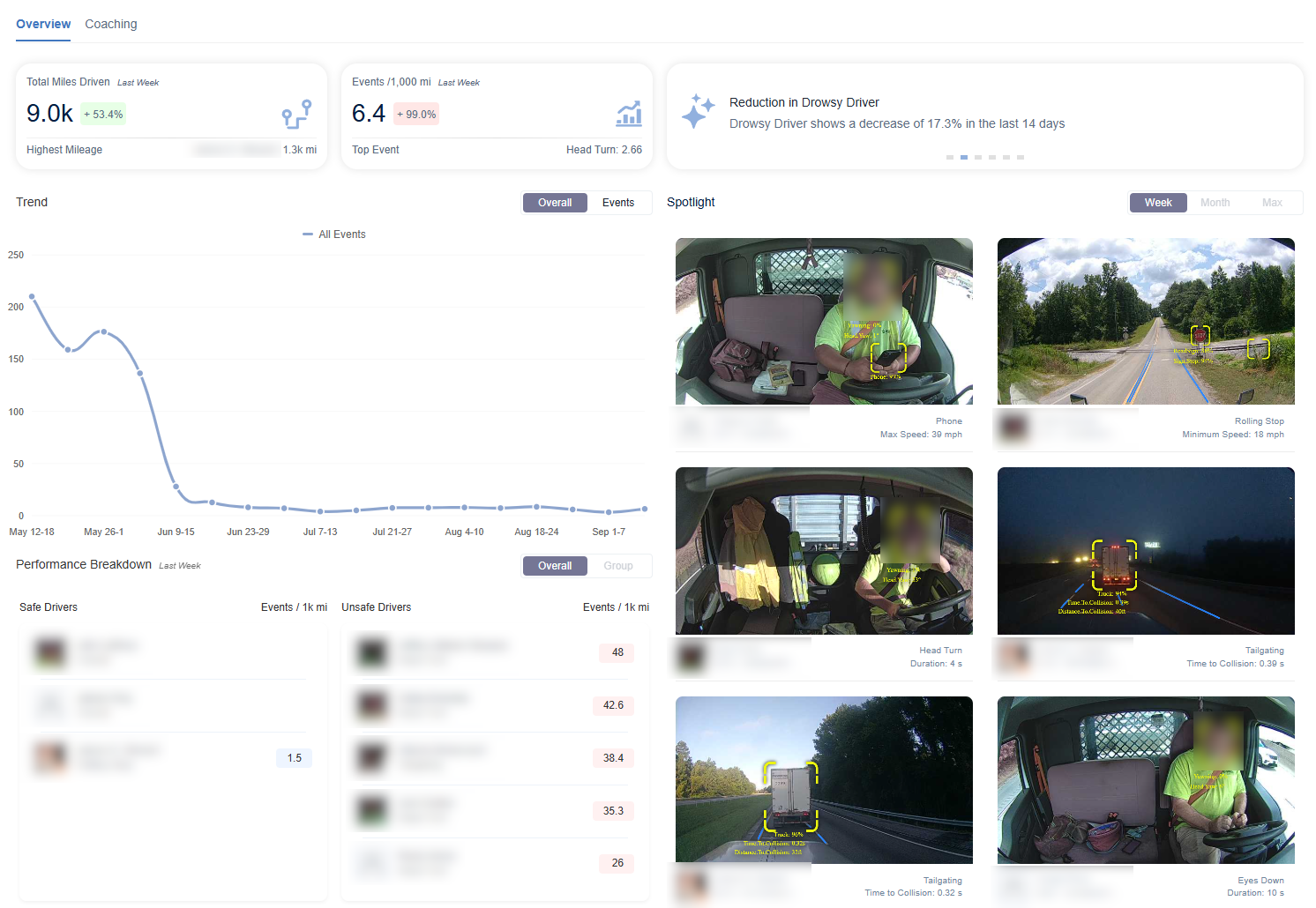
The Overview tab has several elements to help you visualise safety trends and events at a high level - the Trend graph, the Spotlight, and a Performance Breakdown.
Using the Trend graph
You can mouse over the Trend graph, and the Spotlight section will dynamically update to show events only from the time period you moused over (for example, if you mouse over Sep 1-7, the Spotlight will only show events captured during that week).
You can switch the Trend graph from Overall to Events using the toggle to filter by specific event types. While in the Events view, click any event type to toggle showing/hiding it on the graph.
In the sample screenshot below, we’ve hidden everything except Rolling Stop and Tailgating to only see those events. Notice how the Spotlight now only shows related events as well.

Using the Spotlight
The Spotlight section shows Events from the selected time period, either the chosen period of Week/Month/Max (all time), or the time period that you moused over on the Trend graph.
In the Spotlight, you can click any video to load the video player, which shows:
- The video recording
- Associated telematics and sensor data
- Labeled inferences
You can also click Add + at the bottom right to manually add or remove labels to help you categorise events.

Using the Performance Breakdown
The performance breakdown lists your fleet’s safest and least safe drivers or driver groups, sorted by events per 1,000 km. Switch between drivers and groups by clicking the Overall or Group toggles.
You can click on any driver profile, and the rest of the Overview page will automatically update to only show data for that driver on the Trend graph and the Spotlight. Click the driver profile again to deselect them and return to the fleetwide overview.
Coaching tab

✱ NOTE: Coaching requires Driver ID to be enabled to associate events to drivers.
While the Overview tab is for measuring and managing safety at a high level, the Coaching tab provides a much more focused view to help you coach individual drivers based on their recorded behaviour.
This AI-powered tool identifies which events to review with each driver, with no manual flagging needed. It generates personalised coaching recommendations based on your fleet's activity.
Reviewing the AI-powered recommendations
- Recommendation: Click on a recommendation to open its details. At the top, you'll see a behaviour carousel, where you can see grouped events for each behaviour.
- Active: Once you've reviewed a recommendation, you can approve it, which will move it into the Active tab.
- History: After you've completed a coaching session, the event will be moved to the History tab, where you'll always have a record for tracking progress and demonstrating compliance.
Events page
On the Video > Events page in MyGeotab, you can look through all recorded camera-related data using the tabs at the top:
- The Events tab shows all detected events.
- The Cameras tab shows all installed cameras and their status.
- The Trips tab shows all recorded trips for camera-installed vehicles.
On all three tabs, you can use the filters at the top of the page to narrow down your results.
Events tab

The Events tab shows all events identified by GO Focus Plus cameras in the company groups that you have permission to view. You can use the various filter options to focus on events you want to review, or use the powerful Custom Combination tool to visualise particularly high-risk event patterns.
The Events tab has the following filters at the top of the page:
- Asset or Serial: If you have a specific vehicle in mind, you can select it here by specifying the asset name or device serial number.
- Driver: If you have a specific driver in mind, you can select them here.
- Rules: If you want to look for events triggered by a specific rule, you can select that here. This can be filtered further by drilling down by rules, see Filter by Threshold
- Date: Use the date picker to select a time range, if desired.
- High Magnitude Only: This option filters for events that have been marked as serious based on our internal proprietary scoring algorithm. It considers factors such as time to collision, time of day, driver head position, and eye movement to assess the overall seriousness of the event.
- Repeat Offenders: Select this option to specifically show repeat offenders.
- Compliant drivers have only one recorded event
- Safe drivers have few events
- Repeat offenders repeat the same events
- Sorting: You can sort events by Date/Time or Magnitude.
Below the filters, you can click a specific driver behaviour to show all events of that type for the selected dates and filter options (or for the entire fleet if no filter options are specified).
Viewing event previews
Hover over any event to auto-play the most egregious part of that event. You are also shown quick insights for the event, such as the time to collision, maximum speed, duration, and distance to collision, right from the main page.
Opening the video player and using the video tools
You can click on any event to open the video player and watch the entire recording.
In the video player, hover over the video to bring up various options at the bottom right:

From top to bottom, the buttons do the following:
- Download a PDF summary of the incident
- Download a ZIP file containing the video, sensor, and telematics data - a dialog appears inside the video player where you can select what data you want to include in the download
- Provide feedback about the video if something is wrong, or if you think the video is a false positive
- Mark the event as coachable, making it appear on the Coaching page
- Mute/unmute audio, if available
- Adjust general video options such as volume and playback speed
Filtering rules by custom threshold
Some rules allow for custom filtering by a specified threshold. For rules that support this, select the rule from the Search field and then specify a magnitude to filter by. Filtering by threshold is supported by all rules in the Critical, ADAS, and DMS categories.
For example, you can filter by the Tailgating rule to only show events where the driver tailgated for more than a specified number of seconds:

Using the Custom Combination feature
This feature allows you to combine two different video rules to narrow down more complex, higher-risk incidents. To do this, go to the Rules filter and select Custom Combination:

Next, you can combine two video rules to see related events. Specify any combination of 2 video rules and specify if the first rule triggered before (choose Before) or during (choose While) the second rule. Use this powerful tool to look for particularly risky combinations of behaviour and coach your drivers as needed.
For example, if you want to see all events where a driver had their eyes down shortly before a near collision, make the following selections and then click Publish:

Some examples of common compound risks are Phone While Tailgating and Distraction Before Near Collision.
Cameras tab

On the Events > Cameras tab, you can see a list of all GO Focus Plus camera feeds in the company groups you have permission to view, along with their current status (online, parked, or offline).
You can click on any camera to see its Recent Events, Recent Trips, device serial number, VIN, and so on.
The Cameras tab has the following filters at the top of the page:
- Asset or Serial: If you have a specific vehicle in mind, you can select it here by specifying the asset name or device serial number.
- Status: Use this dropdown to filter cameras by their current status: Online, Parked, or Offline.
- VIN: If you have a specific vehicle in mind, you can specify its VIN here. Note that cameras are always paired with a telematics device (GO device) and a vehicle.
Trips tab

On the Events > Trips tab, you can see any trip recorded by a GO Focus Plus-equipped vehicle on the map.
The Trips tab has the following filters at the top of the page:
- Asset or Serial: If you have a specific vehicle in mind, you can select it here by specifying the asset name or device serial number.
- Driver: If you have a specific driver in mind, you can select them here.
- Date: Use the date picker to select a time range, if desired.
Click any trip in the list to show it on the map.
Camera Settings

The Assets > Cameras page shows a list of all assets in your fleet with a camera installed. You can click any device name in the list to adjust its camera settings such as enabling or disabling audio recording or voice alerts.
Also on this page, you can click Video rules at the top right to configure the sensitivity thresholds for the rules that trigger the automatic uploading of events. While many of the rules are based on proprietary AI algorithms and cannot be edited, other rules (including built-in rules) can have their thresholds edited. For more information, refer to the Cameras section of the Video Management in MyGeotab document.
For example, if your cameras are generating too many tailgating events, you can increase the thresholds for that rule - either a longer distance (measure in time to collision) or a longer duration before an event is flagged.
For more general information about enabling, disabling, and editing rules, see the Rules section of the MyGeotab Product Guide.
Devices & Settings
When you click a device name on the Assets > Cameras page, you are taken to the Devices & Settings tab. Here, you can view and adjust each individual camera’s device settings, and also view the current Live stream (if the camera is currently streaming) and any past event Recordings by clicking the buttons at the top right of the Camera card under the OTHER DEVICES column.
! IMPORTANT: If you make any changes on this page, remember to click Save at the top right.
Enabling or disabling the driver-facing camera
For privacy purposes, you can disable the driver-facing camera of any dual-facing (road and driver) camera devices.
To do this:
- Navigate to the Assets > Cameras page.
- Click the Devices & Settings tab.
- Under the Video subsection of the Other Devices card, enable or disable the Driver-facing camera toggle as needed.
- Click Save at the top right of the page.

Power Management
Winter Mode manages power consumption for GO Focus Plus (GFP) dashcams by transitioning between two parking stages based on vehicle inactivity.
1. Light Nap (Initial Parking)
This is the first stage of power management that occurs shortly after a trip ends.
- Trigger: Activated 5 minutes after the vehicle parks.
- Power Consumption: 70 mA.
- Remote Access: The dashcam remains network-connected and is available for remote wake-up.
- Automatic Wakeup: Occurs immediately when the vehicle is driven.
- Duration: This mode is limited to a maximum of 24 hours.
2. Deep Sleep (Extended Parking)
The camera enters this mode during periods of prolonged inactivity to further conserve vehicle battery life.
- Trigger: Activated after 24 continuous hours in Light Nap.
- Power Consumption: Reduced to 7 mA.
- Remote Access: The network connection is disabled, and immediate remote access is not available. The dashcam will wake up to "call home" once every 24 hours.
- Automatic Wakeup: Occurs immediately when the vehicle is driven.
- Duration: Indefinite until the vehicle moves.
Video Rules
Please see the Video Rules section of this document for further configurations: Video Management in MyGeotab